Friday, March 27, 2009

Easy Chroot for Maemo

I'm going to start this post with a defence of my pronunciation of "chroot" as a single word, not "c-h-root" or whatever. I believe it should be pronounced this way for three reasons:
  1. Unix/Linux commands and computer acronyms are commonly pronounced as words. "grep", which is a contraction of the g/re/p command, is pronounced as a word, as are many even less plausible acronyms. Try saying "s-c-s-i" instead of "scuzzy" in a computer lab and be prepared for the derisive laughter.
  2. I think the chroot command was intended to reference the cheroot, a kind of inexpensive cigar also known as a stogie.
  3. It is much easier to say. Why would you make work for yourself by saying a one-syllable word as two or three syllables?
The rest of this post is a more in-depth technical discussion of my easy-chroot package, targeted at developers, those wishing to easily mount partitions and image files, and those wishing to try out new linux distributions and environments with a minimum of hassle (no rebooting, partitioning, etc).


Easy Chroot: Introduction

I have packaged the scripts for the mount-and-chroot system underlying my Easy Debian package into a separate package I call "Easy Chroot". I have also included the drivers (compiled by Matan for me) to do the "turbo loop," which allows a mounted image file to be accessed at nearly the same speed as a partition.

I have created (with lots of help from lots of people) a set of scripts that are very generic, and can be used independently or together to build and run various kinds of "appliances" or OS replacements, without any direct impact on the host OS.

The Scripts

qchroot:

This is the all-in-one core script.

Provide it with an image/partition, a mount point, and a command, and it will do the rest... (But it runs the commands it is given as root inside the chroot, which is often not what you want. See the quserchroot command, below, to run chroot apps as non-root.)

The first parameter is the image file, the second parameter is the mountpoint, and the rest of the parameters are passed to the chroot and run there. There's a lot of magic going on under the surface here, so let's look at what's going on "under the hood."

The qchroot script can be broken into three parts; mount, bind, chroot. The mount portion is handled by qmount below, so we'll look at the binding and chroot portions.
  • Binding: After a partition or image file is mounted, it isn't very useful for the kind of chroot we want here. A basic chroot is sometimes referred to as a "jail", because applications run in the chroot filesystem can't "see" anything outside of this filesystem. This means none of the devices, media, temp directories, nor even the user's home directory can be accessed while "inside" the chroot. That's why a careful use of the "mount -o bind" command is required. It mounts directories from the parent OS in the chroot, too, so applications in the "chroot" can "see" them. Mounting the /dev directory makes most of the devices connected to the system visible, and mounting everything under /media allows the chroot access to SD cards and attached external media such as USB drives. This also allows chroot apps to share the X display and desktop manager, so they appear to be running on the Maemo desktop. The qchroot script also mounts the various temporary directories, so that applications can communicate with applications in the parent OS. This means GTK apps inside the chroot can invoke Maemo's stylus keyboard when a text field is tapped. It also means a chroot app can open an e-mail attachment from Modest.
  • Chroot: This is the primary purpose of all of these scripts, and in the end, it is one of the most simple and straightforward parts. The qchroot script makes sure that exiting the chroot, however that happens, resets things gracefully as possible, but the actual chroot is a simple one line command. It really is the mounting and the binding that make the chroot a workable virtual environment.
userchroot: The userchroot script is only a thin wrapper around qchroot. This script, however, isn't run as root; in fact it will fail unless it is run as non-root. The userchroot script inserts an extra "su user -c" before the commands to be executed inside the chroot. It takes the same parameters as qchroot.

For example, let's say you have an image file on your SD card containing, among other things, OpenOffice.org. You would run the following command (as user, not root) to open a document in oo writer:
userchroot /media/mmc1/ubuntu-ooo.img.ext2 /opt oowriter "/home/user/MyDocs/resume.doc"
Hey! Look at that splash screen! You're starting up OpenOffice Writer!

qmount: This script does some serious heavy lifting. It is called by qchroot to mount the image file or partition. It takes the first two parameters of the scripts mentioned above; the image/partition name and the mountpoint. A lot of my best scripting is in here, and this is also where I needed the most help from outside.

The qmount script checks to see what it is you are trying to mount, and if you are mounting an image file (a file that contains a filesystem, like an ISO file, except it is read/write), it will use the dmlosetup app (thanks Matan!) to mount the image file; this improves read/write speed dramatically, and makes the image file almost as fast as a dedicated partition.

You can use this script to mount an image or partition, if all you want to do is mount it (and not chroot into it). A partition mounted with qmount is not suitable for chroot however.

closechroot: This script is one of the best things about running applications in a chroot. By running this script, you can kill all of the chroot applications in one blow. No hunting around trying to find stray processes. The closechroot script is also very important to run if you want to delete or move the image file that you have mounted, because the dm-loop doesn't "let go" of the image file when you just unmount it.

The closechroot script takes one parameter, the directory where the chroot is mounted. It then kills the chroot applications, unmounts all of the bound directories, and then unmounts the image file or partition that you mounted.

qumount: This is the script that does the unmounting for closechroot. It can be used independently if all you want to do is unmount a partition or image file. Don't use qumount to unmount a fully mounted chroot, however.

synchroot: This script doesn't need to be run very often. It copies several configuration files from the primary system to the chroot, so that the two environments are "synched". This is important for things like time, user permissions, keyboard mapping, and networking. The files that are copied are the following:
  • /etc/hosts
  • /etc/resolv.conf
  • /etc/group
  • /etc/passwd
  • /etc/localtime
  • /usr/share/X11/xkb
The files in the chroot are backed up with a date-based extension, so you can restore your chroot file system if synchroot breaks something.

Some Support Hacks

There are a few extras thrown into the easy-chroot package to make it easier to run non-hildon applications. Here's a quick overview of them.

Movable Dialogs Hack
: Thanks to qwerty12 and Matan, you can set your dialogue boxes to be either movable or static (the default). Movable dialogues are often needed when running desktop applications which can have huge dialogue boxes for settings, etc.

Processor Speed Hack: Thanks to lcuk and others, the /sbin/cpu-ondemand and /sbin/cpu-perform scripts (and associated menu items) set your processor to either "on demand" mode (processor speed drops when cpu is idle) or "performance" mode (processor speed is locked at full speed). Due to very aggressive definitions of "idle" in the Maemo system, the processor often scales back to half speed when it isn't appropriate. This can have a noticeably negative impact on processor intensive applications (like Gimp and OpenOffice, etc). By setting the processor to "performance", you can dramatically speed up many of these big, slow applications.

Host Window Hack: Thanks to Bundyo, this little app (/usr/bin/hostwin) can be used with the Xephyr nested X-server to run a secondary desktop (yes, a complete desktop, like Gnome, or KDE, or anything) as a window on your primary Maemo desktop. See the link above to the ITT thread discussing the program's use.

Installing The Package

easy-chroot can be found in the diablo extras repository. Install with the Application Manager or apt-get install easy-chroot or make it a dependency of your project.

Labels: , , , , , , ,

Thursday, March 19, 2009

E17 Illume on N800


The Enlightenment project is a lightweight desktop environment and a bunch of supporting libraries (which are used in projects like Canola). The Illume module is a new Enlightenment desktop "that modifies the user interface of enlightenment to work cleanly and nicely on a mobile device." E17 is the newest, still-in-development version of Enlightenment.

Nathan "Neato" Jones got E17 Illume running on the tablets under Mer, and then he gave us good instructions to try it ourselves. And he even posted an annotated video of Illume in action!

I fired up an Ubuntu Jaunty chroot on my tablet, installed the E17 builder-installer script, and after many hours of compiling the entirety of E17 on-tablet and two SVN versions, I got a working version!

I then used my Xephyr-on-Maemo trick (the trick I used in Easy Debian to run IceWM and LXDE on top of OS2008) and, from within OS2008, I tried out the interface in both portrait and landscape mode.

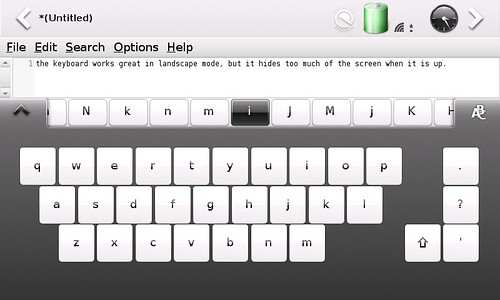
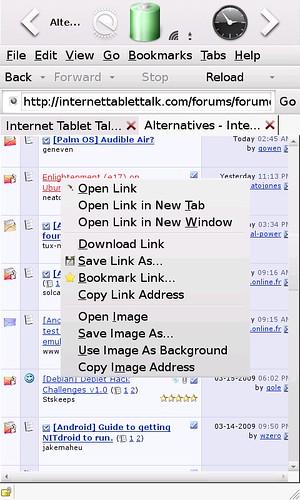
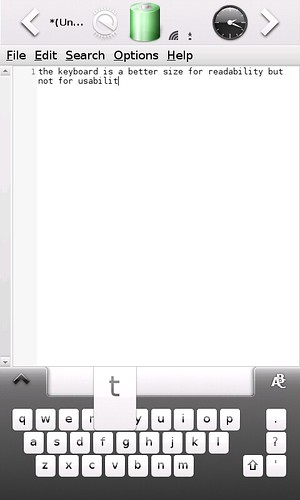
Here are some screenshots of portrait mode:


The browser is Epiphany, using the Mozilla engine. The text editor is Leafpad.

I have to say the on-screen keyboard is much too big for landscape use, and too small for portrait use. I found this frustrating. I also found it frustrating that there was no way to "log out" of E, I had to kill the X-Server or reboot the tablet to get out of it.

My final opinion (and Nathan seems to agree) is that the E17 Illume desktop has a lot of potential as an interface for the tablets, but it is still a work in progress and there are a lot of rough edges to be taken off.

Labels: , , , , , , ,

Tuesday, February 24, 2009

Qole's Notes: Building an Easy Mer / Ubuntu Chroot for the NIT

Mer Midori running in OS2008 Diablo via chroot

Why Mer?

I've been wanting to set up an Ubuntu chroot in the style of Easy Debian. I've decided to use the Mer 0.8 rootfs because:
  • Mer is based on Ubuntu Jaunty, which is my current distro of choice, mainly because it has the newest Open Java6 JDK.
  • The Mer developers have clearly been working to slim down the big Ubuntu footprint; consequently, the image is much smaller than a comparable Jaunty image.
  • The Hildon Input Method works automatically with GTK apps; this means the stylus keyboard pops up when I tap an input field in a GTK app.
  • Midori, a great little GTK WebKit-based browser, comes bundled. Not only that, but they've managed to get some Hildonization done by the developer!

Qole's Notes

Here are my notes for customizing the Mer 0.8 rootfs to run in my chroot.

I have the rootfs set up in a partition on my SD card, and I'm using my Easy Debian package to do the actual chroot.

I'm posting these so I can set things up quickly in the future. Hopefully someone else finds something of value here too.

Configuring the Chroot

Some basic configuration needs to be done, right off the bat. First, from the Maemo prompt:

sudo closechroot
touch /home/user/.synchroot


Then, as root inside the chroot:

mkdir -p /home/user
chown user:users /home/user


This will copy some Maemo config files into the chroot and make a home directory for "user".

Default Ubuntu Shell

The shell defaults to "dash" as opposed to "bash". As explained here, this was a decision by the Ubuntu team to improve boot speed. Boot speed is not relevant in a chroot, so I repoint /bin/sh to bash instead of dash. Inside the chroot:

rm /bin/sh
ln -s /bin/bash /bin/sh


I don't like this solution very much; it will make the system much slower booting (if you wish to boot to it). I'm going to see about leaving dash symlinked and purposely calling bash when a chroot terminal is requested.

Setting Locale:


Changing locales in Ubuntu is ugly, even "broken," as described here. This is what I do (from within the chroot) to get en_GB (my Maemo locale) set up in the chroot. From within the chroot:

cat /usr/share/i18n/SUPPORTED | grep en_GB
vim /var/lib/locales/supported.d/local
dpkg-reconfigure locales


Hardware Key Hacks / GTK Stylus Setup

Now it's time to get the pieces needed for my fullscreen and on-screen keyboard hacks. From within the chroot:

apt-get update
apt-get install matchbox-keyboard wmctrl xbindkeys libgtkstylus


I use xbindkeys, wmctrl, and Matchbox-Keyboard to do "fake hildonization;" by running xbindkeys, I can map the hardware key combination "-" and "fullscreen" to make any app fullscreen, and "-" and "menu" to toggle the Matchbox keyboard.

Boy, Ubuntu's version of Matchbox keyboard is ugly. What's with the shaded keys?

The libgtkstylus on the end there lets the user use tap-and-hold for right-click within GTK apps.

Adobe Flashplayer

Now I install Stskeep's Adobe flashplayer hack, to allow Flash to work in Midori and other browsers. In maemo root terminal (with chroot mounted):

cd /root
wget http://qole.org/files/deblet-flashplayer.tar.gz
tar xzvf deblet-flashplayer.tar.gz
cd flashplayer
leafpad flashplayer.sh

(change the CHROOT value to point to the directory where your chroot is mounted & save)
./flashplayer.sh

That should configure most Ubuntu browsers to use the maemo Adobe flash plugin.

OpenJDK (Java 6)

apt-get install icedtea6-plugin (This wants to pull in all sorts of unnecessary language fonts; I had to add all the ttf pkgs to the install line, followed by "-" for each, eg ttf-baekmuk- ttf-bengali-fonts- ttf-kannada-fonts- etc...)
sudo debian update-java-alternatives -s java-6-openjdk
sudo ln -s /usr/lib/jvm/java-6-openjdk/jre/lib/arm/IcedTeaPlugin.so /ubuntu/usr/lib/firefox-addons/plugins/libjavaplugin.so

Test the install here:

http://java.sun.com/applets/jdk/1.4/index.html

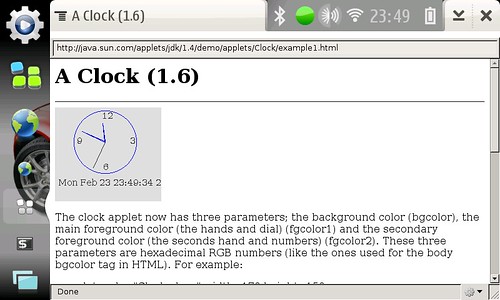
There currently doesn't seem to be a way to get OpenJava6 to run in Midori. I installed Mozilla Prism to to test Java. It seems to be the lightest-weight Java-capable browser available for the tablet. From within the chroot:

apt-get install prism

Prism running a simple demo Java applet

DBus

Getting maemo / chroot dbus processes to talk is proving to be a challenge...
Maemo doesn't seem to keep the machine id in /var/lib/dbus/machine-id, which is where most dbus-aware apps expect it to be. So far, I've found the following seems to work. In a maemo root terminal (after starting the chroot in /ubuntu) [1]:

dbus-uuidgen --ensure
mount -o bind /var/lib/dbus /ubuntu/var/lib/dbus


This seems to make DBus work; the Mer osso-xterm from maemo will respect the existence of maemo's osso-xterm. The only way to start Mer's osso-xterm is to close maemo's version first.

I've got to make this more permanent. I have to do the mount -o bind command every time I start the chroot (after closechroot or reboot).

Other Problems

The stylus keyboard doesn't work in Midori's web pages, only in the address bar. This is true for any GTK browser. The widgets within the web page are not GTK widgets, so no Hildon Input Method activation. Java doesn't work in Midori, and Prism is a very stripped-down browser, with a very bare interface. Sadly, even installing xulrunner Gnome support doesn't help with making it more stylus friendly. Is there nothing like MicroB out there?

Theme problems: There's got to be a way to get the chroot and maemo sharing theme information and icon info, too. This is certainly a difficult problem. Perhaps the simplest solution is to install the same theme into both maemo and mer.

Dash-vs-Bash: I've gotta figure out a way around this...

Extra apps

Leafpad is my favorite lightweight text editor. It works great in this chroot, because it is completely GTK, so the stylus keyboard and tap-and-hold right-click work fine.

Gnome ALSA mixer
is a nice addition. It is not included in the tarball below, but it is easy to install, and it doesn't pull in a huge number of dependencies.

Future: I want to experiment with Fennec Alpha 2 (+24.3 MB) and Abiword 2.6.6 (+53 MB), and see how they work in this environment. I also would like to try the E17 desktop.

Downloadable rootfs tarball

Here's a tarball of the mer 0.8 chrootfs with all of the above already completed (158 MB).

Updates
25-Feb-09: Here's what I've discovered so far:
  • Fennec doesn't do Flash (even though it sees the plugin, it doesn't actually show the Flash) and it is somewhat unstable. I can't select text; if I drag, it just drags the page. If I double click, it zooms.
  • Abiword works, and it uses Hildon Input Method. It seems to have problems loading files, however, often opening an empty "Untitled" file instead of the chosen document. It also is a bit wobbly; it crashed once on me.
  • I can make the stylus keyboard pop up in most Mer apps (where it doesn't pop up by itself) by pressing the centre d-pad key.
01-Mar-09: Getting themes to work:

I've found a two-step way to get the theme to work in the chroot.
  • Edit /home/user/.gtkrc-2.0 and comment out any theme-related lines. Add the following line:
include "/usr/share/themes/liberty/gtk-2.0/gtkrc"
  • Start the sapwood theme server inside the chroot (as user, not root). I have no idea why it doesn't share the running sapwood server in Maemo; probably Nokia's version is proprietary somehow.
/usr/lib/sapwood/sapwood-server &
If you want to maintain a consistent theme throughout, then you need to install the same theme in OS2008 and the chroot. So far, this seems to be limited to the Titan theme, since the Liberty theme isn't available for OS2008 and Titan is the only third-party OS2008 themes in the Mer repository at the moment.

I will post updates as I discover more.

Labels: , , , , , , , , , , ,

Sunday, October 12, 2008

Easy Debian moves to Extras

Finally, "Easy Debian" is no longer just a "circus trick"; you can use real laptop applications on your tablet at not-unreasonable speeds, thanks to a couple of "turbo charging" boosts we've gotten lately, and a lot of polish from the rapidly maturing Debian side.

I was overwhelmed by the huge positive reaction across the Internet when I released the first version of my Easy Debian project back in July on Internet Tablet Talk. But I was frustrated by the speed of the "image file" method I was using, and the Debian "armel" architecture was still missing a few key pieces to make it a stable, trustworthy distribution.

Several things have changed since July. First, the Debian armel architecture managed to pull things together in time for the Lenny "freeze" at the end of July. That means there will be a tablet-compatible version of Debian when Lenny becomes the next "stable" version later this year. It also means things like Java, OpenOffice.org and Firefox got some seriously good polishing in the last few months, and it really shows when you run them on the tablet. Also, the LXDE desktop environment came to my attention. It is a really nice, light environment that runs fast on the tablet, and is much more full-featured than the IceWM window manager I was using before.

Secondly, I was given the exciting privilege of Nokia sponsorship to the Maemo Summit in Berlin in September. This motivated me to prepare a new Debian file system with all of the enhancements that had been added in the previous months, as well as some tricks that I had learned since the first version.

Lastly, through the help of others, I found two really effective speed-up techniques that suddenly made the Easy Debian apps really usable! I got down on my virtual knees on the #maemo IRC channel and begged the elite tablet hackers there to help me figure out how to speed up access to the image file that was the basis of the Easy Debian project. Matan came through in a big way; he presented me with some kernel modules and some instructions that accelerated the whole project to almost the same speed as using a dedicated partition (around 2x-4x faster)! I then discovered the ability to set the tablets' processor to "Performance Mode," thanks to lcuk's liqbase project. What a difference that made for processor-hungry apps like OpenOffice and Iceweasel (Firefox)!

So, now that all these pieces are in place, and now that the whole project has "grown up," I felt I needed to push it into the official repositories. I was also getting some gentle pushes from several community members.

Even though the entire project is made from free components (except for one notable exception in the image file), I have released it to the non-free section of Extras-Devel. This is because it was too difficult to get all of the contributed binary bits into a form that could be compiled by the autobuilder that guards the gates of the "free" repository.

Screenshots: (click picture to see more info and larger sizes)

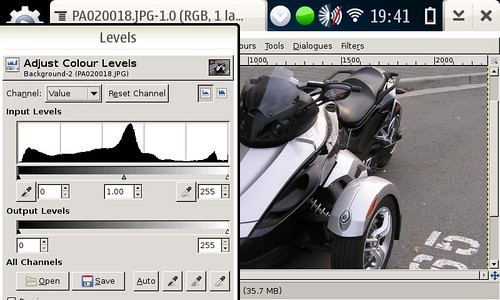
The Gimp editing a 4 megapixel digital photo:


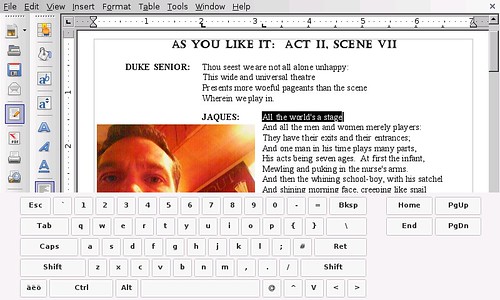
OpenOffice Writer editing a document in OS2008, with Matchbox-Keyboard on top:


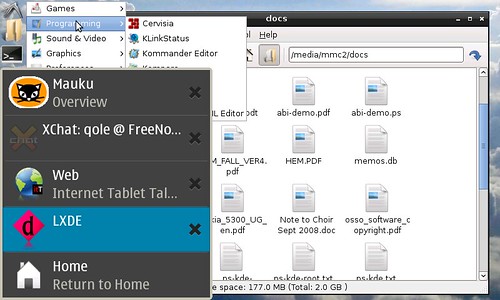
LXDE, (the Lightweight X Desktop Environment) running on top of OS2008:

Labels: , , , , , ,

Monday, October 29, 2007

N800 Optimal Setup (OS2007)

I received my new Nokia N800 last week, and I found that a new owner should really spend some time getting things set up before starting to use the device.

Here are my suggested steps for setting up the device.

Essential: Update the firmware. Don't waste any effort personalizing anything or installing software, just update the firmware. Immediately.

For some reason Nokia didn't include best-of-breed software installed by default on the tablet. Here are my suggested replacements:

Essential:
The included media player is garbage for watching video. Install mplayer instead. Encode your 4:3 (non-widescreen) videos as 320x240 XviD, and your widescreen videos as 400x240 XviD (I recommend cropping a bit off the sides rather than letterboxing). It sounds low resolution, but it looks great on the screen.

The included Opera-based browser is inferior. The MicroB browser, based on Firefox, is a much superior drop-in replacement browser engine. Nokia seems to agree. Rumours are that it will be included as default in OS 2008 (due out in a few weeks, as of this post).

Maemo Mapper is really cool if you want to use your N800 for navigation, and essential if you want to connect it to a Bluetooth GPS device. Make sure you hit the download button to get all of the other maps. The default map provider, OpenStreets, is pretty pathetic. At least for my city, Vancouver.

The N800 comes with a built-in camera, but, out of the box, you can only use it to video chat with other N800 (or 810) users at the moment. Google Talk doesn't have a compatible video client on any of the desktop operating systems, and Skype doesn't yet have a video client for the N800. Pretty shabby, if you ask me. At least Nokia could have released their N800 video plugin as Open Source so someone could port it to another platform.

So, if you want to use the camera for something, then install the Camera app or Knips.

If you want listen to FM radio, you have to install the FM radio applet.

The included instant messaging app is only capable of Google Talk. No, I don't know why! So install Pidgin. This one's a bit more work, but totally worth it.

The included PDF reader is pretty useless. Install evince instead. Then go get some free books (like "Someone Comes to Town, Someone Leaves Town" or "Ventus") and get reading!

UKMP seems to be a really nice media center, for those who like that kind of thing. Makes your N800 look very iPod-like. This is a a bit of a complicated install. Ok, not really. First install Python 2.5 and then install UKMP.

Just a note. UKTube, included with UKMP, is broken. Probably due to YouTube tinkering with their interface. Actually, many of the YouTube downloaders seem broken these days. And you really don't want to try to watch YouTube videos with the included Flash plugin (and there's no superior community replacement for that, since that's a closed-source project).

This one is still working: http://www.witube.net/index.php

Geek Zone:

If, like me, you want to use your N800 like a little computer, then here are some things you probably want.

Note: I was able to install the following stuff without having to enable R&D mode or anything like that. Perhaps the latest firmware?

VNC (remote desktop control software): This will let you connect to your desktop computer. For total Geek Mode, this will get you a remote desktop that fits exactly to the screen dimensions of your N800. This looks really cool when you go fullscreen on the N800, hide the toolbar, then open OpenOffice on the remote desktop. So, if you have a linux desktop, install VNC server and run this on your desktop linux computer: vncserver -geometry 800x480

A shell / command line / terminal: Get Osso XTerm Enhanced.

IMPORTANT NOTE: Before I go on, I have to say that I've seen a lot of places talking about installing SSH on your N800. I haven't seen much stress the terrible security risk involved. However, since the default root password is widely available, you must must must change the root password as soon as you install the ssh package. You're propping open the back door of your device if you don't! And there's a lot of scruffy, smelly guys in that particular back alleyway.

Install SSH. Reboot. Open the XTerm. Copy or enter the following (replace [newpassword] with your new password of course):

ssh root@localhost
(enter the default root password)
passwd root [newpassword]
passwd user [newpassword]

Now you can get root access to your device securely and easily. Just type
ssh root@localhost
from your N800, or better still, WinSCP or some other SCP/SFTP capable program and log in to your N800 remotely (once you know your N800's IP address). This (SCP/SFTP) is my preferred way of accessing the N800.

I will post again soon with instructions on re-arranging the N800 Application Menu using the above remote root access.

Hint: look at /home/user/.osso/menus/applications.menu

Labels: , , , , , , , , ,