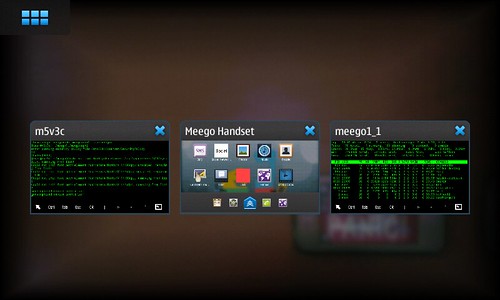
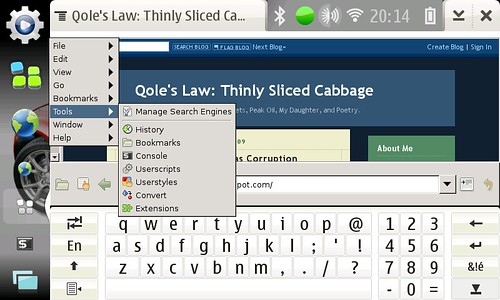
 Mer Midori running in OS2008 Diablo via chroot
I've been wanting to set up an Ubuntu chroot in the style of Easy Debian. I've decided to use the
Mer 0.8 rootfs because:
- Mer is based on Ubuntu Jaunty, which is my current distro of choice, mainly because it has the newest Open Java6 JDK.
- The Mer developers have clearly been working to slim down the big Ubuntu footprint; consequently, the image is much smaller than a comparable Jaunty image.
- The Hildon Input Method works automatically with GTK apps; this means the stylus keyboard pops up when I tap an input field in a GTK app.
- Midori, a great little GTK WebKit-based browser, comes bundled. Not only that, but they've managed to get some Hildonization done by the developer!
Qole's NotesHere are my notes for customizing the Mer 0.8 rootfs to run in my chroot.
I have the rootfs set up in a partition on my SD card, and I'm using my Easy Debian package to do the actual chroot.
I'm posting these so I can set things up quickly in the future. Hopefully someone else finds something of value here too.
Configuring the ChrootSome basic configuration needs to be done, right off the bat. First, from the Maemo prompt:
sudo closechroot
touch /home/user/.synchrootThen, as root inside the chroot:
mkdir -p /home/user
chown user:users /home/userThis will copy some Maemo config files into the chroot and make a home directory for "user".
Default Ubuntu ShellThe shell defaults to "dash" as opposed to "bash". As explained
here, this was a decision by the Ubuntu team to improve boot speed. Boot speed is not relevant in a chroot, so I repoint /bin/sh to bash instead of dash. Inside the chroot:
rm /bin/sh
ln -s /bin/bash /bin/shI don't like this solution very much; it will make the system much slower booting (if you wish to boot to it). I'm going to see about leaving dash symlinked and purposely calling
bash when a chroot terminal is requested.
Setting Locale:Changing locales in Ubuntu is ugly, even "broken," as described
here. This is what I do (from within the chroot) to get en_GB (my Maemo locale) set up in the chroot. From within the chroot:
cat /usr/share/i18n/SUPPORTED | grep en_GB
vim /var/lib/locales/supported.d/local
dpkg-reconfigure localesHardware Key Hacks / GTK Stylus SetupNow it's time to get the pieces needed for my fullscreen and on-screen keyboard hacks. From within the chroot:
apt-get update
apt-get install matchbox-keyboard wmctrl xbindkeys libgtkstylusI use xbindkeys, wmctrl, and Matchbox-Keyboard to do "fake hildonization;" by running xbindkeys, I can map the hardware key combination "-" and "fullscreen" to make any app fullscreen, and "-" and "menu" to toggle the Matchbox keyboard.
Boy, Ubuntu's version of Matchbox keyboard is
ugly. What's with the
shaded keys?
The libgtkstylus on the end there lets the user use tap-and-hold for right-click within GTK apps.
Adobe FlashplayerNow I install Stskeep's Adobe flashplayer hack, to allow Flash to work in Midori and other browsers. In maemo root terminal (with chroot mounted):
cd /root
wget http://qole.org/files/deblet-flashplayer.tar.gz
tar xzvf deblet-flashplayer.tar.gz
cd flashplayer
leafpad flashplayer.sh(change the CHROOT value to point to the directory where your chroot is mounted & save)./flashplayer.shThat should configure most Ubuntu browsers to use the maemo Adobe flash plugin.
OpenJDK (Java 6)apt-get install icedtea6-plugin (This wants to pull in all sorts of unnecessary language fonts; I had to add all the ttf pkgs to the install line, followed by "-" for each, eg ttf-baekmuk- ttf-bengali-fonts- ttf-kannada-fonts- etc...)sudo debian update-java-alternatives -s java-6-openjdksudo ln -s /usr/lib/jvm/java-6-openjdk/jre/lib/arm/IcedTeaPlugin.so /ubuntu/usr/lib/firefox-addons/plugins/libjavaplugin.soTest the install here:
http://java.sun.com/applets/jdk/1.4/index.html
There currently doesn't seem to be a way to get OpenJava6 to run in Midori. I installed Mozilla
Prism to to test Java. It seems to be the lightest-weight Java-capable browser available for the tablet. From within the chroot:
apt-get install prism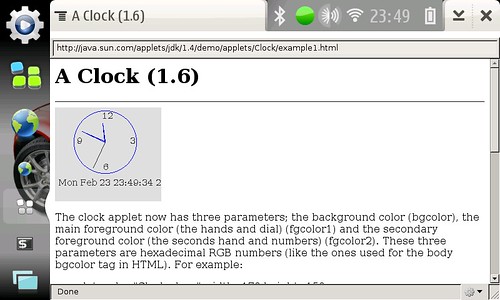 Prism running a simple demo Java applet
Getting maemo / chroot dbus processes to talk is proving to be a challenge...
Maemo doesn't seem to keep the machine id in /var/lib/dbus/machine-id, which is where most dbus-aware apps expect it to be. So far, I've found the following seems to work. In a maemo root terminal (after starting the chroot in /ubuntu)
[1]:
dbus-uuidgen --ensure
mount -o bind /var/lib/dbus /ubuntu/var/lib/dbusThis seems to make DBus work; the Mer osso-xterm from maemo will respect the existence of maemo's osso-xterm. The only way to start Mer's osso-xterm is to close maemo's version first.
I've got to make this more permanent. I have to do the mount -o bind command every time I start the chroot (after closechroot or reboot).
Other ProblemsThe stylus keyboard doesn't work in Midori's web pages, only in the address bar. This is true for any GTK browser. The widgets within the web page are not GTK widgets, so no Hildon Input Method activation. Java doesn't work in Midori, and Prism is a very stripped-down browser, with a very bare interface. Sadly, even installing xulrunner Gnome support doesn't help with making it more stylus friendly. Is there nothing like MicroB out there?
Theme problems: There's got to be a way to get the chroot and maemo sharing theme information and icon info, too. This is certainly a difficult problem. Perhaps the simplest solution is to install the same theme into both maemo and mer.
Dash-vs-Bash: I've gotta figure out a way around this...
Extra appsLeafpad is my favorite lightweight text editor. It works great in this chroot, because it is completely GTK, so the stylus keyboard and tap-and-hold right-click work fine.
Gnome ALSA mixer is a nice addition. It is not included in the tarball below, but it is easy to install, and it doesn't pull in a huge number of dependencies.
Future: I want to experiment with Fennec Alpha 2 (+24.3 MB) and Abiword 2.6.6 (+53 MB), and see how they work in this environment. I also would like to try the E17 desktop.
Downloadable rootfs tarball
Here's
a tarball of the mer 0.8 chrootfs with all of the above already completed (158 MB).
Updates25-Feb-09: Here's what I've discovered so far:
- Fennec doesn't do Flash (even though it sees the plugin, it doesn't actually show the Flash) and it is somewhat unstable. I can't select text; if I drag, it just drags the page. If I double click, it zooms.
- Abiword works, and it uses Hildon Input Method. It seems to have problems loading files, however, often opening an empty "Untitled" file instead of the chosen document. It also is a bit wobbly; it crashed once on me.
- I can make the stylus keyboard pop up in most Mer apps (where it doesn't pop up by itself) by pressing the centre d-pad key.
01-Mar-09: Getting themes to work:
I've found a two-step way to get the theme to work in the chroot.
- Edit /home/user/.gtkrc-2.0 and comment out any theme-related lines. Add the following line:
include "/usr/share/themes/liberty/gtk-2.0/gtkrc"
- Start the sapwood theme server inside the chroot (as user, not root). I have no idea why it doesn't share the running sapwood server in Maemo; probably Nokia's version is proprietary somehow.
/usr/lib/sapwood/sapwood-server &
If you want to maintain a consistent theme throughout, then you need to install the same theme in OS2008 and the chroot. So far, this seems to be limited to the Titan theme, since the Liberty theme isn't available for OS2008 and Titan is the only third-party OS2008 themes in the Mer repository at the moment.
I will post updates as I discover more.
Labels: chroot, install, internet tablet, jaunty, maemo, mer, n800, n810, nokia, open source, setup, ubuntu